Free MacBook Neo mockups
Put your website or web app on a photorealistic MacBook Neo, on its own with a transparent background, in Silver, Blush, Citrus or Indigo. Drop in a screenshot and export in seconds.
Free · no sign-up · nothing uploaded
Transparent MacBook Neo mockups
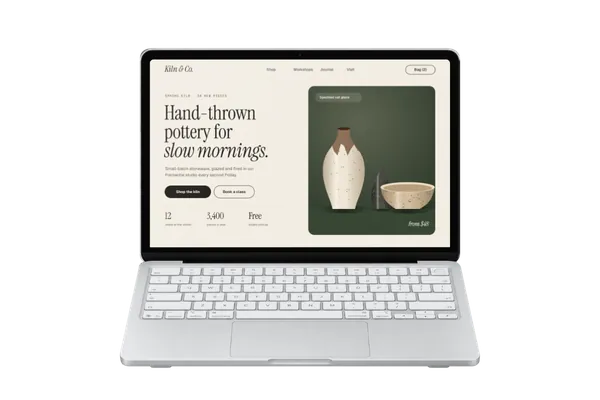
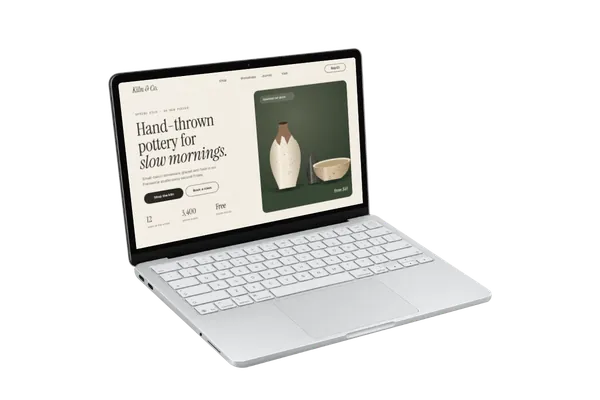
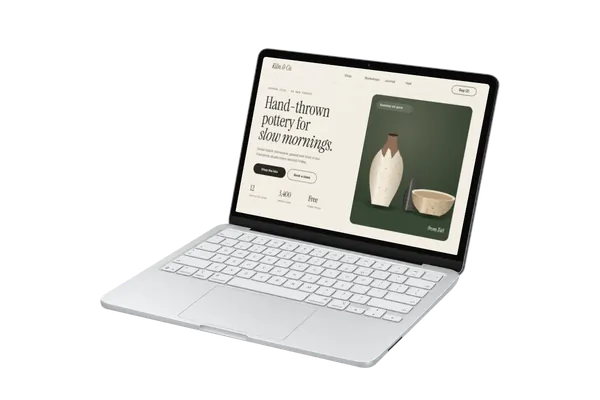
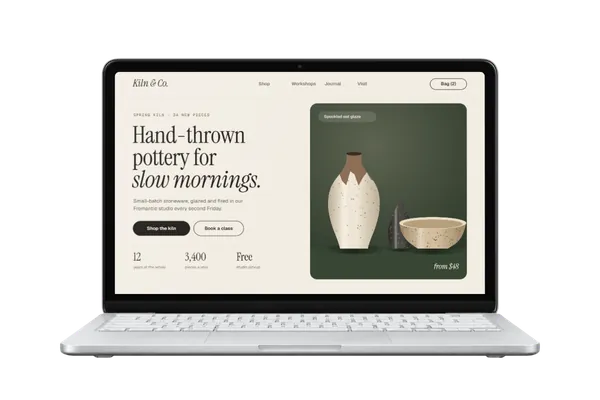
Just the MacBook Neo on its own: 4 angles, in Silver, Blush, Citrus and Indigo. Export a PNG or WebP and the background stays see-through, ready for an App Store page, a landing page or a slide. All transparent mockups →
MacBook Neo mockups in short
- DevicesMacBook Neo
- Mockups4 transparent, in Silver, Blush, Citrus and Indigo
- PriceFree, including commercial use. No account, no watermark
- PrivacyYour screenshot never leaves your browser. Check it yourself
- ExportsJPG, PNG or WebP in three sizes, up to 4,000 px; in the scene’s own shape or cropped for an Instagram post (4:5), a square, a story (9:16), a 16:9 slide, a link preview (1.91:1) or Dribbble (4:3)
About these mockups
The MacBook Neo comes from the front, turned to the left and right, and from low down at the front, and the colour you pick follows you from angle to angle, so a set always matches. Each angle has its screen mapped in advance, so your design sits on the display at the right perspective. With no background of its own, it sits on any landing page, slide or launch post in your brand’s colours, and its bright finishes suit playful products and fresh launches.
Screenshot sizes that fit
The MacBook Neo’s screen is 16:10, so a browser-window screenshot at 1440 × 900, 1680 × 1050, 2560 × 1600 or 2880 × 1800 fits it exactly. A 16:9 screenshot such as 1920 × 1080 fills it with a little trimmed from the sides; choose Fit inside to show it whole.
How it works
- Pick a mockup above, or open Plinth and add your screenshot first.
- Drop, paste or choose your screenshot. It’s placed on the screen straight away, on your own device.
- Export a JPG, PNG or WebP, in the scene’s own shape or a social crop.
Questions
How do I make a MacBook Neo mockup?
Open Plinth, pick one of the 4 transparent MacBook Neo mockups, and drop in your screenshot (or paste it). It’s placed on the screen straight away, at the right angle. Then export a JPG, PNG or WebP. It’s free, there’s no account, and your screenshot never leaves your browser.
Is this MacBook Neo mockup free for commercial use?
Yes. Every mockup and every export size is free, with no account and no watermark. The images you export are yours to use anywhere, including client work, ads and social posts, with no credit needed. Just don’t resell the blank mockup scenes themselves.
Which MacBook Neo colours are there?
All four: Silver, Blush, Citrus and Indigo. Pick one in the editor’s Colour section and the other angles open in it too.
Which angles are there?
Four: straight on from the front, turned to the left and to the right, and from low down at the front. Export them in one colour for a matching set.
Is there a MacBook Neo on a desk?
Not yet: the MacBook Neo comes on its own, with a transparent background. For a laptop on a real desk, sofa or terrace, the MacBook Pro scenes on the MacBook mockups page are photographed settings, or ask for a MacBook Neo scene on the requests board.
Is my screenshot uploaded anywhere?
No. Plinth runs entirely in your browser: your screenshot is placed, rendered and exported on your own device and never sent to a server, so it’s safe for unreleased work and client projects.
Is there a MacBook Neo mockup with a transparent background?
Yes. The device-only MacBook Neo mockups show the device on its own, in Silver, Blush, Citrus and Indigo. Export one as PNG or WebP and the background stays transparent, so you can place it on any colour or layout.
Don't see the device you need? Ask for it, or vote for what's made next.