Free website mockups
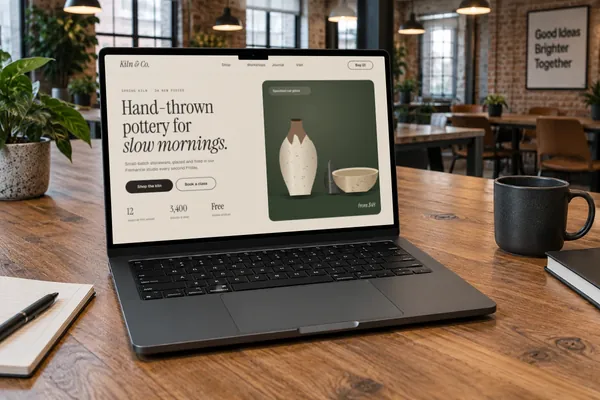
Put a screenshot of your website on a photorealistic MacBook, desktop monitor or iPad, for a portfolio, a landing page or a client deck. You bring the screenshot and Plinth puts it on the device: it doesn’t design or build the site for you.
Free · no sign-up · nothing uploaded
Your site in a real setting
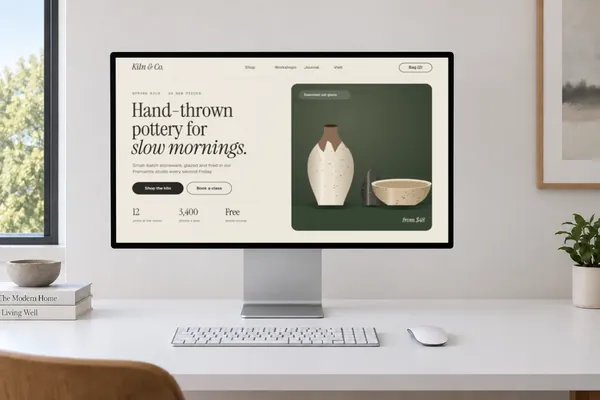
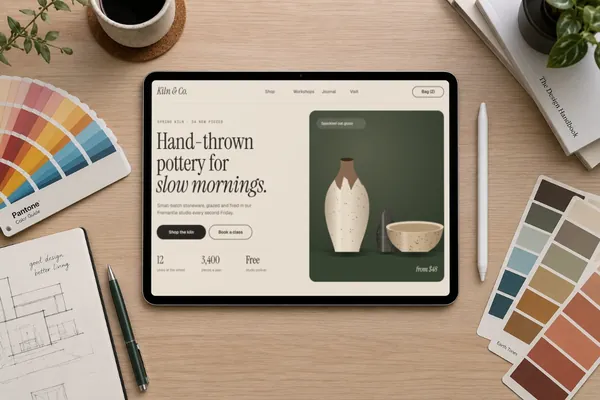
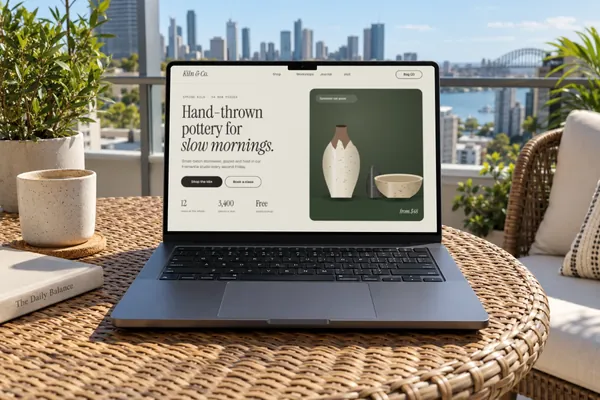
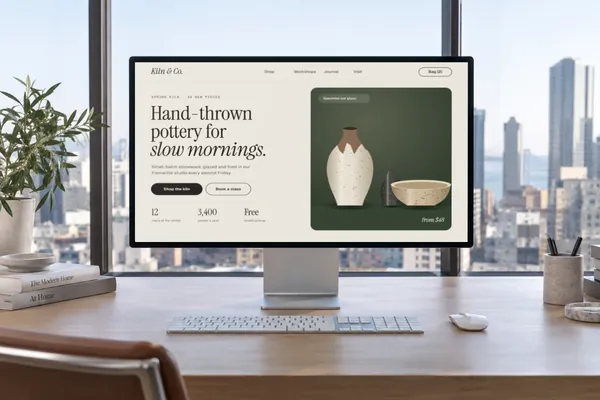
MacBook Pro, Studio Display and iPad Pro scenes, each with its screen mapped in advance and the room’s light on it.
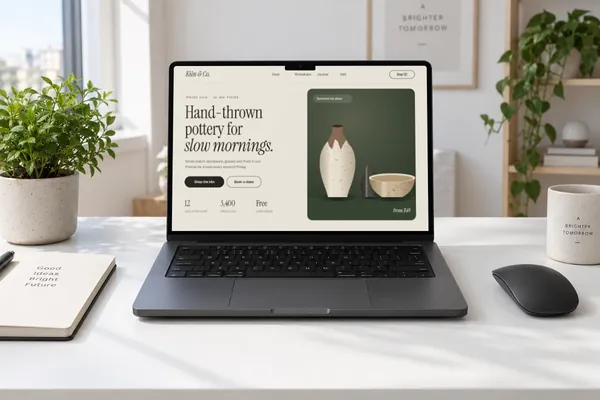
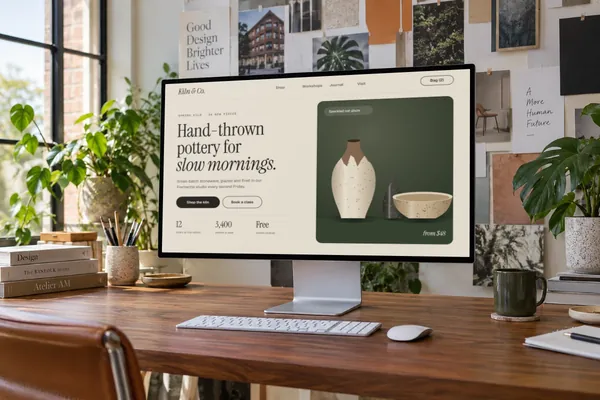
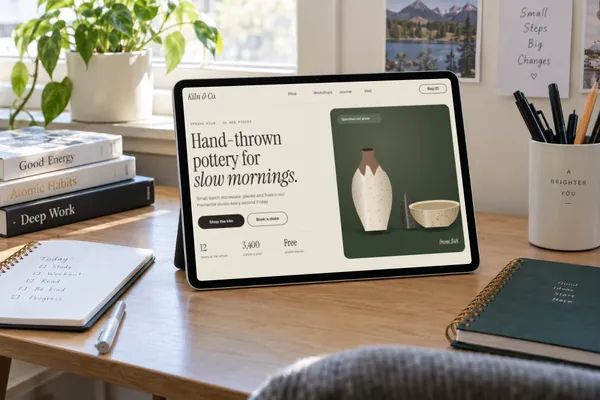
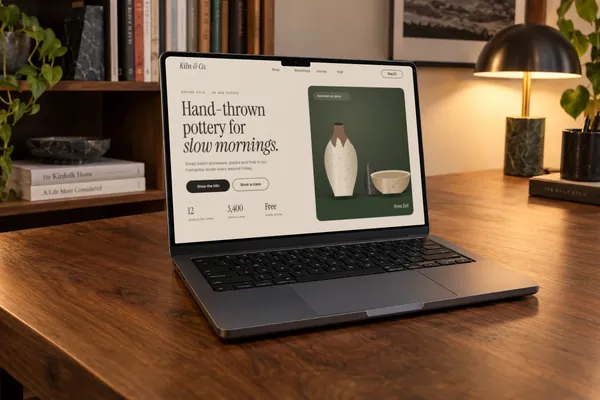
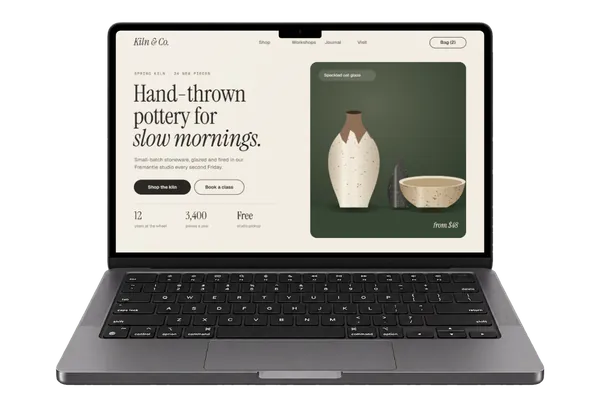
Just the device
For your own layout: the background stays see-through when you export a PNG or WebP. All transparent mockups →
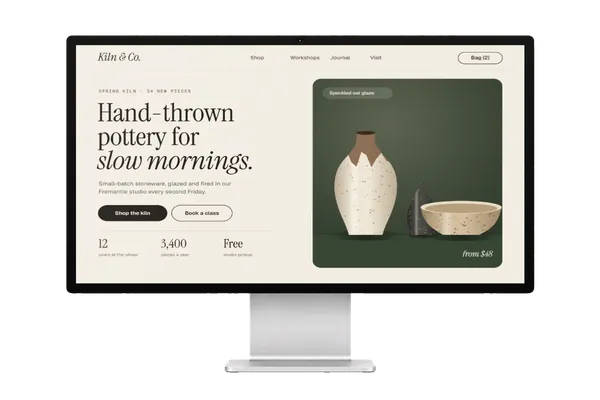
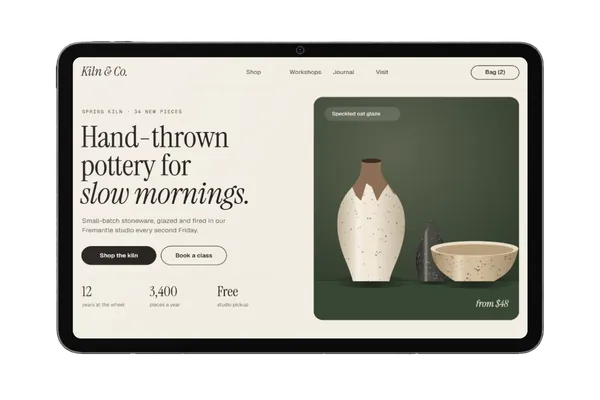
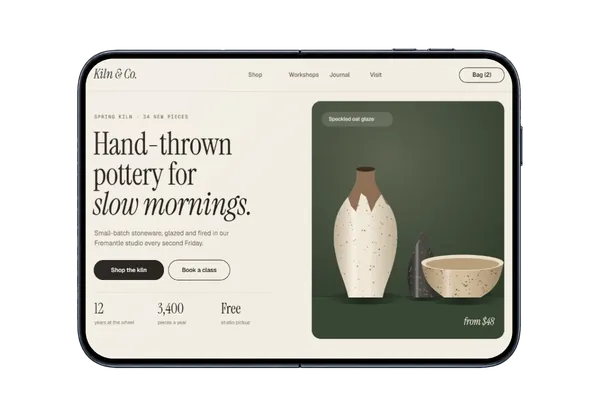
Screenshot sizes that fit
These fill the screen exactly. Other shapes work too: choose Fit inside to show the whole page, or drag it to choose which part shows.
| Device | Sizes | Good for |
|---|---|---|
| MacBook Pro | 1440 × 900, 1512 × 982, 2880 × 1800, 3024 × 1964 | Portfolios and case studies |
| Studio Display | 1920 × 1080, 2560 × 1440, 3840 × 2160, 5120 × 2880 | SaaS, dashboards and wide layouts |
| iPad Pro, on its side | 2388 × 1668, 2732 × 2048, 2752 × 2064 | Showing a responsive tablet layout |
| iPhone Duo, open | 1400 × 1000. A 1440 × 900 capture also works, with a little trimmed from its sides | Something people haven’t seen a thousand times |
- DevicesMacBook Pro, Studio Display, iPad Pro and iPhone Duo
- Mockups9 in real scenes and 4 transparent here, out of 103 in all
- PriceFree, including commercial use. No account, no watermark
- PrivacyYour screenshot never leaves your browser. Check it yourself
- ExportsJPG, PNG or WebP in three sizes, up to about 3,000 px; in the scene’s own shape or cropped for an Instagram post (4:5), a square, a story (9:16), a 16:9 slide, a link preview (1.91:1) or Dribbble (4:3)
What a website mockup is here
It’s a picture of your site on a device. Plinth doesn’t build websites, and it doesn’t fetch pages from an address, so you start with a screenshot of the site or of your design. That’s also why nothing needs to leave your computer, even for a site that isn’t live yet.
Get a clean screenshot
In Chrome, open the developer tools and turn on the device toolbar. Set the size to 1512 × 982 for the MacBook or 1920 × 1080 for the monitor, then choose Capture screenshot from the toolbar’s ⋮ menu. You get the page at exactly that size, with no tabs or bookmarks in the picture. Long, full-page captures work too: Plinth shows the top of the page, and you can drag or scroll to show another part.
For a portfolio
Stick to one device through a case study, so the work stays the focus. Open with a scene to set the mood, then use transparent mockups on your own background for the detail screens. Keeping the same angle across a set makes it look deliberate.
For a landing page
Use a transparent mockup and export a WebP: it sits on your page’s background and is much smaller than a PNG. Export at about twice the width it will show at, so it stays sharp on high-resolution screens. For the preview people see when you share the link, use the Link preview crop.
Questions
Can I make a mockup from a URL?
No. Plinth doesn’t visit pages for you. Take a screenshot of the page, then drop it in. The section on this page about getting a clean screenshot shows a quick way to do it.
Does this design or build my website?
No. It’s for showing a site you already have, or a design of one. Plinth puts the picture on a device, and that’s all it does to it.
Can I use it for client work?
Yes. Every mockup and every export size is free, with no account and no watermark. The images you export are yours to use anywhere, including client work, ads and social posts, with no credit needed. Just don’t resell the blank mockup scenes themselves.
Can I show the phone version beside it?
Plinth shows one device at a time, so make one mockup of each and place them side by side in Figma, Keynote or your page builder. Transparent mockups make that easy. For the phone version, capture your site at 393 × 852 and use an iPhone or Galaxy mockup.
Can I use a site that isn’t live yet?
Yes. A screenshot of a staging site or of a design works the same way, and it stays on your own device.
Is my website screenshot uploaded anywhere?
No. Plinth runs in your browser, so your screenshot is placed, rendered and exported on your own device and never sent to a server. Here’s how to check.
Don't see the device you need? Ask for it, or vote for what's made next.