Free iMac mockups
Put your website, dashboard or Mac app on a photorealistic 24-inch iMac, on its own with a transparent background, in Silver, Blue, Purple, Pink, Orange, Yellow or Green. Drop in a screenshot and export in seconds.
Free · no sign-up · nothing uploaded
Transparent iMac mockups
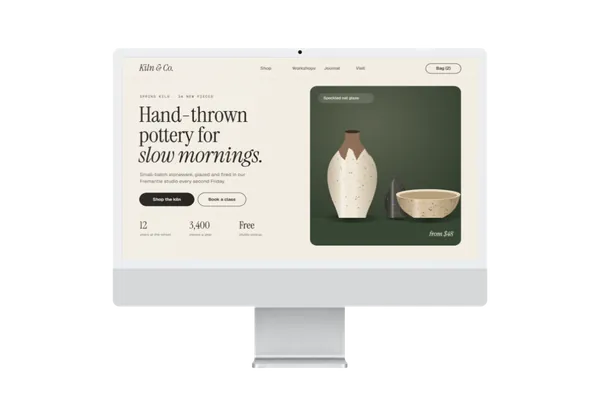
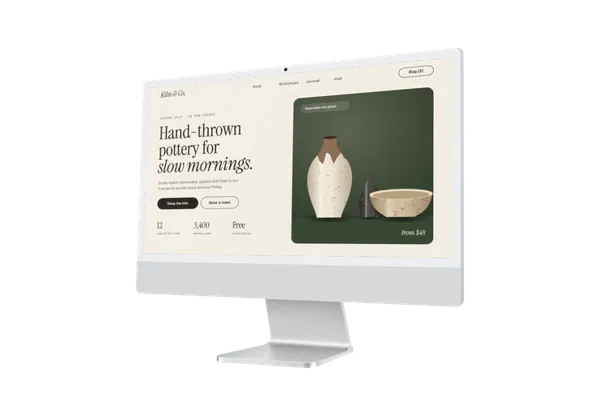
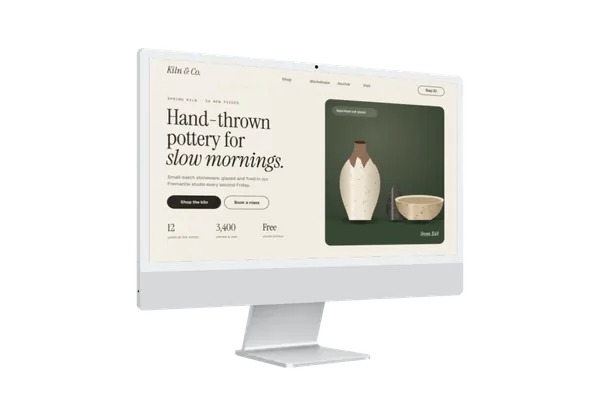
Just the iMac on its own: 3 angles, in Silver, Blue, Purple, Pink, Orange, Yellow and Green. Export a PNG or WebP and the background stays see-through, ready for an App Store page, a landing page or a slide. All transparent mockups →
iMac mockups in short
- DevicesiMac
- Mockups3 transparent, in Silver, Blue, Purple, Pink, Orange, Yellow and Green
- PriceFree, including commercial use. No account, no watermark
- PrivacyYour screenshot never leaves your browser. Check it yourself
- ExportsJPG, PNG or WebP in three sizes, up to 4,000 px; in the scene’s own shape or cropped for an Instagram post (4:5), a square, a story (9:16), a 16:9 slide, a link preview (1.91:1) or Dribbble (4:3)
About these mockups
The iMac comes from the front and turned to the left and right, and the colour you pick follows you from angle to angle, so a set of three always matches. Each angle has its screen mapped in advance, so your design meets the white frame at the right perspective. With no background of its own, it sits on any landing page, slide or launch post in your brand’s colours, and an iPhone or iPad beside it shows the same product across devices.
Screenshot sizes that fit
The iMac’s screen is 16:9, so a 1920 × 1080, 2560 × 1440 or 3840 × 2160 screenshot fits it exactly, as does one at its own 4480 × 2520. A 16:10 MacBook screenshot, such as 2880 × 1800, fills it with a little trimmed from the top and bottom; choose Fit inside to show it whole.
How it works
- Pick a mockup above, or open Plinth and add your screenshot first.
- Drop, paste or choose your screenshot. It’s placed on the screen straight away, on your own device.
- Export a JPG, PNG or WebP, in the scene’s own shape or a social crop.
Questions
How do I make an iMac mockup?
Open Plinth, pick one of the 3 transparent iMac mockups, and drop in your screenshot (or paste it). It’s placed on the screen straight away, at the right angle. Then export a JPG, PNG or WebP. It’s free, there’s no account, and your screenshot never leaves your browser.
Is this iMac mockup free for commercial use?
Yes. Every mockup and every export size is free, with no account and no watermark. The images you export are yours to use anywhere, including client work, ads and social posts, with no credit needed. Just don’t resell the blank mockup scenes themselves.
Which iMac colours are there?
All seven: Silver, Blue, Purple, Pink, Orange, Yellow and Green. Pick one in the editor’s Colour section and the other angles open in it too.
Which angles are there?
Three: straight on from the front, and turned to the left and to the right. Export all three in one colour for a matching set.
Is there an iMac on a desk?
Not yet: the iMac comes on its own, with a transparent background. For a monitor on a real desk, the Studio Display scenes on the desktop mockups page are set up in offices and studios, or ask for an iMac scene on the requests board.
Is my screenshot uploaded anywhere?
No. Plinth runs entirely in your browser: your screenshot is placed, rendered and exported on your own device and never sent to a server, so it’s safe for unreleased work and client projects.
Is there an iMac mockup with a transparent background?
Yes. The device-only iMac mockups show the device on its own, in Silver, Blue, Purple, Pink, Orange, Yellow and Green. Export one as PNG or WebP and the background stays transparent, so you can place it on any colour or layout.
Don't see the device you need? Ask for it, or vote for what's made next.